Quick answer: To protect your email from hackers, the most important steps are: enable two-factor authentication (2FA), use a strong unique password not reused elsewhere, recognize and avoid phishing attempts, audit connected third-party apps, keep recovery options current, and monitor account activity for unauthorized access. 2FA is the single most impactful step — it blocks unauthorized access even when a password is stolen.
"My Email Was Hacked" — How It Happens and What Actually Prevents It
When an email account is compromised, the consequences extend well beyond the email itself: because email is used to reset passwords for other services, an attacker with access to an email account can potentially access banking, shopping, social media, and other accounts linked to that email address. This makes email account security particularly important — it is often the master key to a user's entire online presence. Understanding how email accounts are compromised, and which protective measures address which attack vectors, is the starting point for effective protection. This guide covers the main steps to protect email from hackers — including two-factor authentication, password security, phishing awareness, connected app audits, and activity monitoring — with specific steps for Gmail and Microsoft 365 / Outlook. Security features and interface details change over time; the steps here reflect current options as of mid-2026, and checking the provider's current security documentation if steps differ is recommended.
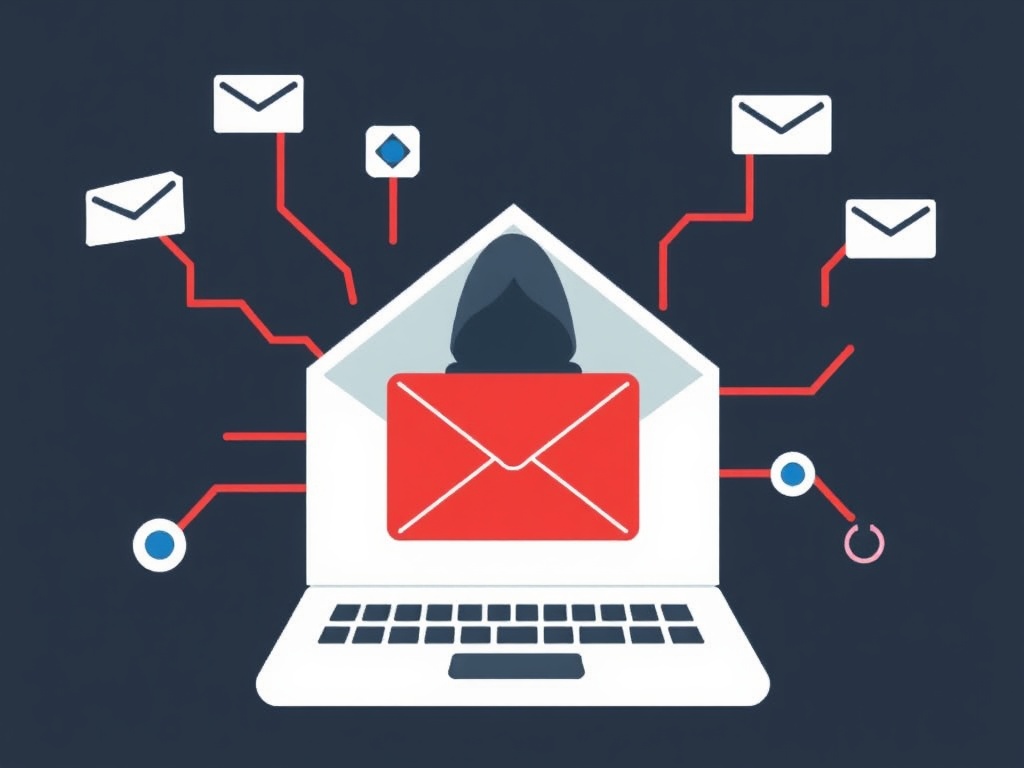
How Email Accounts Get Compromised — 5 Common Attack Vectors
Attack VectorHow It WorksPrimary DefensePhishingFake login page captures credentialsPhishing awareness; hardware security key (FIDO2)Credential StuffingLeaked passwords from other breaches tested automaticallyUnique password per service; 2FAMalware / KeyloggerDevice malware captures passwords or session cookiesDevice security; software updates; antivirusUnauthorized Connected AppThird-party app with account access is compromised or maliciousRegular connected app audit; revoke unnecessary accessAccount Recovery AbuseAttacker uses recovery options (phone, backup email) to reset passwordKeep recovery options current; use secure recovery email
1. Enable Two-Factor Authentication
Two-factor authentication (2FA) is the single most impactful step for protecting an email account. With 2FA enabled, an attacker who obtains the password through phishing, a data breach, or credential stuffing still cannot access the account without the second factor — typically an authenticator app code or a hardware security key. For Gmail: go to myaccount.google.com > Security > 2-Step Verification. For Microsoft 365 / Outlook: go to account.microsoft.com > Security > Advanced security options > Two-step verification. An authenticator app (Google Authenticator, Microsoft Authenticator, Authy) provides strong protection for most users; a hardware security key (YubiKey or similar FIDO2 device) provides the highest level of protection, including resistance to phishing attacks. After enabling 2FA, save the backup codes provided by the service in a secure location — a password manager or a printed copy stored securely. Backup codes are the recovery mechanism if the 2FA device is lost. Without backup codes, recovering access to a 2FA-protected account requires contacting the service's support team, which can be a slow process. Registering a backup 2FA method (a second phone number or a second hardware key) provides additional redundancy.
2. Use a Strong, Unique Password
A strong password for an email account should be long (at least 16 characters is a reasonable target), random, and unique — not used on any other service. The reason uniqueness matters: if a password is reused across services and one of those services suffers a data breach, the leaked password can be tested against the email account in a credential stuffing attack. Using a password manager (Bitwarden, 1Password, or similar) makes it practical to use a unique random password for every service without needing to remember them. The password manager itself should be protected with a strong master password and 2FA. NIST's current guidance (SP 800-63B) recommends prioritizing password length and uniqueness over complexity requirements such as mandatory special characters. Checking whether the email address or associated passwords appear in known data breaches is a useful step: haveibeenpwned.com allows checking an email address against a database of known breaches for free. If the address appears in a breach, changing the password for the affected service (and any service where the same password was used) is recommended. Enabling breach monitoring notifications (available on haveibeenpwned.com and built into some password managers) provides ongoing alerts if the address appears in future breaches.
3. Recognize and Avoid Phishing Attempts
Phishing — emails that impersonate trusted organizations to steal credentials — is among the most common ways email accounts are compromised. Key indicators of phishing include: a sender address that does not match the organization it claims to be from (check the full email address, not just the display name); urgent language pressuring immediate action ("Your account will be suspended in 24 hours"); links that lead to a domain that is not the official domain of the organization (hover over links before clicking to see the actual URL); and requests for credentials, payment information, or sensitive data via email. When in doubt about an email claiming to be from a service, navigate directly to the service's website by typing the URL rather than clicking a link in the email. Hardware security keys (FIDO2/WebAuthn) provide a technical defense against phishing that does not rely on the user recognizing the phishing attempt: the key is cryptographically bound to the specific domain and will not authenticate on a phishing site. For users who are likely targets of sophisticated phishing attacks, hardware keys provide protection that awareness training alone cannot match.
4. Audit Connected Third-Party Apps
Many email users have granted access to third-party applications — productivity tools, calendar apps, email clients, and other services — that can read, send, or manage email on their behalf. If one of these apps is compromised, or if access was granted to a malicious app, the attacker can access the email account without needing the password or 2FA code. Periodically reviewing and revoking access for apps that are no longer used or unrecognized is an important maintenance step. For Gmail: go to myaccount.google.com/permissions to see all apps with access to the Google account and revoke any that are unrecognized or no longer needed. For Microsoft 365: go to myapps.microsoft.com or the Microsoft account security settings to review connected apps.
5. Monitor Account Activity and Keep Recovery Options Current
⚠️ Outdated recovery options are a significant security risk — and are often overlooked: Email providers use recovery options (a backup email address and a phone number) to verify identity during account recovery. If these options are outdated — a phone number that is no longer active, or a backup email address that is no longer accessible — account recovery after a compromise becomes significantly more difficult. Review and update recovery options periodically: for Gmail, go to myaccount.google.com > Security > Ways we can verify it's you; for Microsoft, go to account.microsoft.com > Security > Update your security info. Additionally, review account activity regularly for signs of unauthorized access: Gmail shows recent sign-in activity at the bottom of the inbox (click "Details"); Microsoft shows recent activity at account.microsoft.com/security. Unfamiliar sign-in locations or devices should be investigated immediately.
Step-by-Step: How to Secure Your Email Account Today
Step 1: Enable 2FA With an Authenticator App
Download an authenticator app (Google Authenticator, Microsoft Authenticator, or Authy) on a smartphone. Go to the email account's security settings and enable 2-step verification, selecting the authenticator app option. Scan the QR code with the app. Save the backup codes in a password manager or secure physical location. Sign out and back in to confirm the 2FA prompt appears and works correctly.
Step 2: Change to a Strong, Unique Password
If the current email password is reused on other services or is shorter than 16 characters, change it to a strong, unique password. Use a password manager to generate and store the new password. If the same password has been used on other services, change those passwords as well — prioritizing financial, healthcare, and other sensitive accounts.
Step 3: Review and Remove Unfamiliar Connected Apps
For Gmail: myaccount.google.com/permissions. For Microsoft: account.microsoft.com > Privacy > Apps and services. Review the list of apps with access to the account. Revoke access for any app that is unrecognized, no longer used, or that has broader permissions than expected. After revoking access, the app will no longer be able to access the account without re-authorization.
Step 4: Update Recovery Options
Verify that the backup email address and phone number associated with the account are current and accessible. For Gmail: myaccount.google.com > Security > Ways we can verify it's you. For Microsoft: account.microsoft.com > Security > Update your security info. If the backup email address is an old account that is no longer monitored, update it to a current, secure address.
Step 5: Review Recent Account Activity
Check recent sign-in activity for unfamiliar locations or devices. For Gmail: scroll to the bottom of the inbox and click "Details" under "Last account activity". For Microsoft: account.microsoft.com/security > Review activity. If unfamiliar activity is found, change the password immediately, review connected apps, check for unauthorized forwarding rules or filters (Gmail: Settings > See all settings > Filters and Forwarding; Outlook: Settings > Mail > Rules and Forwarding), and notify contacts if unauthorized emails were sent from the account.
Frequently Asked Questions — Protecting Email from Hackers
How do I protect my email from hackers?
Enable 2FA with an authenticator app or hardware key, use a strong unique password not reused elsewhere, recognize and avoid phishing attempts, audit connected third-party apps, keep recovery options current, and monitor account activity. 2FA is the single most impactful step — it blocks unauthorized access even when a password is stolen.
How do I know if my email has been hacked?
Signs include: emails in Sent that were not sent by the account owner, contacts reporting suspicious emails from the account, inability to log in with the correct password, unexpected password reset emails, unfamiliar forwarding rules or filters, and login activity from unfamiliar locations. Check Gmail's account activity (inbox bottom > Details) or Microsoft's recent activity page.
What is the most common way email accounts get hacked?
Phishing (fake login pages that capture credentials) and credential stuffing (automated testing of passwords leaked from other breaches) are the most prevalent attack vectors. Reusing passwords across services significantly increases credential stuffing risk. 2FA and unique passwords address both attack vectors.
What should I do if my email account has been hacked?
Change the password immediately, enable or update 2FA, remove unfamiliar forwarding rules and connected apps, check the Sent folder for unauthorized emails, update passwords for other accounts using the same password, and check haveibeenpwned.com. If the attacker changed the password and access is lost, use the provider's account recovery process.
Does two-factor authentication fully protect my email account?
2FA significantly reduces unauthorized access risk but is not a complete protection on its own. Sophisticated phishing can capture both password and TOTP codes simultaneously; hardware keys (FIDO2) are the only phishing-resistant 2FA method. A layered approach — strong password, 2FA, phishing awareness, connected app audits, and activity monitoring — provides the most comprehensive protection.
Conclusion & My Take
Protecting email from hackers is not a single action but a combination of measures that address different attack vectors. Two-factor authentication addresses credential theft; unique passwords address credential stuffing; phishing awareness addresses social engineering; connected app audits address third-party access risks; and activity monitoring provides early detection of compromise. No single measure is sufficient on its own, but together they provide substantial protection against the most common threats. The most important immediate step for most users is enabling 2FA if it is not already active — it is free, takes a few minutes to set up, and provides meaningful protection against the most common attack vectors. The second most important step is ensuring that the email password is unique and not reused on other services. These two steps together address the majority of common email account compromises. For users who want the strongest available protection — particularly those who handle sensitive information or are likely targets of sophisticated attacks — hardware security keys provide phishing-resistant authentication that authenticator apps cannot match, and are worth the additional investment and setup effort.
Sources
Google — Security Checkup — myaccount.google.com
Microsoft Support — Keep your Microsoft account safe and secure — support.microsoft.com
CISA — Phishing Guidance: Stopping the Attack Cycle at Phase One — cisa.gov
Have I Been Pwned — Check if your email has been in a data breach — haveibeenpwned.com
NIST SP 800-63B — Digital Identity Guidelines: Authentication and Lifecycle Management — pages.nist.gov